Every Blinking Light Is a Failure to Communicate
If the user will not read the quick-start guide—and they will not, especially at 8 PM when the previous router died and the household needs internet for work deadlines—then the device chassis must carry the entire onboarding experience. Traditional ISP router engineering treats LEDs as debug ports for technicians: tiny SMT components blinking in Morse-code patterns that indicate packet transmission, WAN negotiation, or WPS pairing mode. To a non-technical user standing in a hallway holding an Ethernet cable, a rapid blue blink and a slow amber blink are equally meaningless as emotional signals.

Photo by Jakub Zerdzicki on Pexels
Eero solved this by reducing the interface to a single status light wrapped in the device’s base. Google Nest Wifi uses a ring of light that pulses during setup and glows solid when healthy. These are not aesthetic choices; they are information architecture decisions. The light does not indicate technical states; it indicates emotional states: “working,” “broken,” or “thinking.” The hardware becomes a calm status indicator rather than a dashboard of cryptic telemetry. When the LED language is constrained to three states—success, in-progress, and error requiring human intervention—the user never needs to open the manual to know whether to wait or restart. This constraint forces the entire product team to solve the real problem: making the setup sequence so bulletproof that few errors occur in the first place.
The Port Layout Is the First User Test
That clarity must extend to the physical connection sequence, where one wrong cable insertion turns a five-minute setup into an hour of phone calls to ISP support. The most common failure mode in Wi-Fi router setup UX is the WAN/LAN confusion: a user plugs the incoming broadband cable into an Ethernet port, or connects their laptop to the WAN port, and wonders why “the internet doesn’t work.” Traditional routers label these ports with embossed abbreviations facing the wall, requiring the user to rotate the device or lie on the floor with a flashlight to read them.
Better plug-and-play router design treats ports as error-prevention devices, not just electrical connections. Color-coding the WAN port in a distinct hue from the LAN cluster—yellow for internet, blue for local devices—creates an immediate visual hierarchy. Some advanced designs eliminate the distinction entirely using auto-sensing ports that route traffic based on detected signal, removing the decision point entirely. The physical layout should also enforce the correct sequence: power first, then inbound internet, then local devices, with tactile spacing that prevents the user from filling all ports before the uplink is established. ISPs lose millions annually on “truck roll” dispatches for installation issues that a color-coded port would prevent; the industrial design is therefore a customer acquisition cost reduction tool.
When the Router Becomes Furniture
Hardware clarity means nothing if the user hides the device inside a metal media cabinet or next to a heating vent, which is exactly what happens when industrial design signals “enterprise network equipment.” The form factor determines placement, and placement determines performance. A black plastic box with protruding antennas and blinking LEDs gets stuffed in a closet or behind a couch, degrading signal propagation and causing the very connectivity issues that generate support tickets.
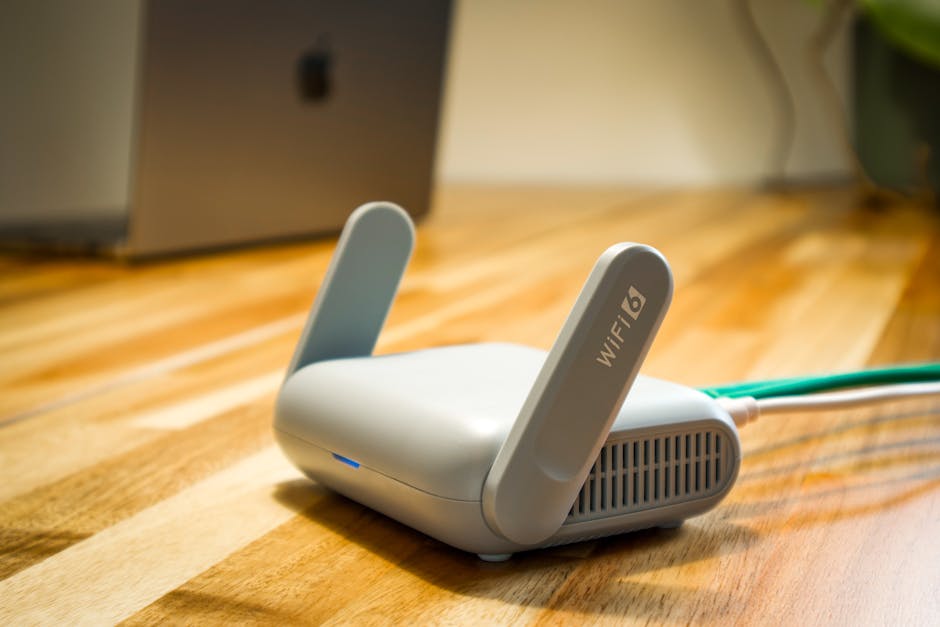
This is why mesh systems like Eero, Orbi, and Nest Wifi adopted the language of consumer appliances—white polycarbonate, fabric wraps, rounded vertical forms that resemble air purifiers or smart speakers. They are designed to sit on bookshelves and side tables in plain sight. This shift in broadband CPE design acknowledges that the device must earn its place in the domestic environment. The engineering challenge is thermal: a router sealed in an aesthetic shell without ventilation grilles will overheat and throttle performance. Solving this requires vertical heat dissipation channels or passive cooling through material selection, allowing the device to live on a wooden shelf without thermal degradation. A router that looks like living room furniture gets placed optimally for signal reach; a router that looks like networking gear gets hidden, regardless of antenna specifications.